
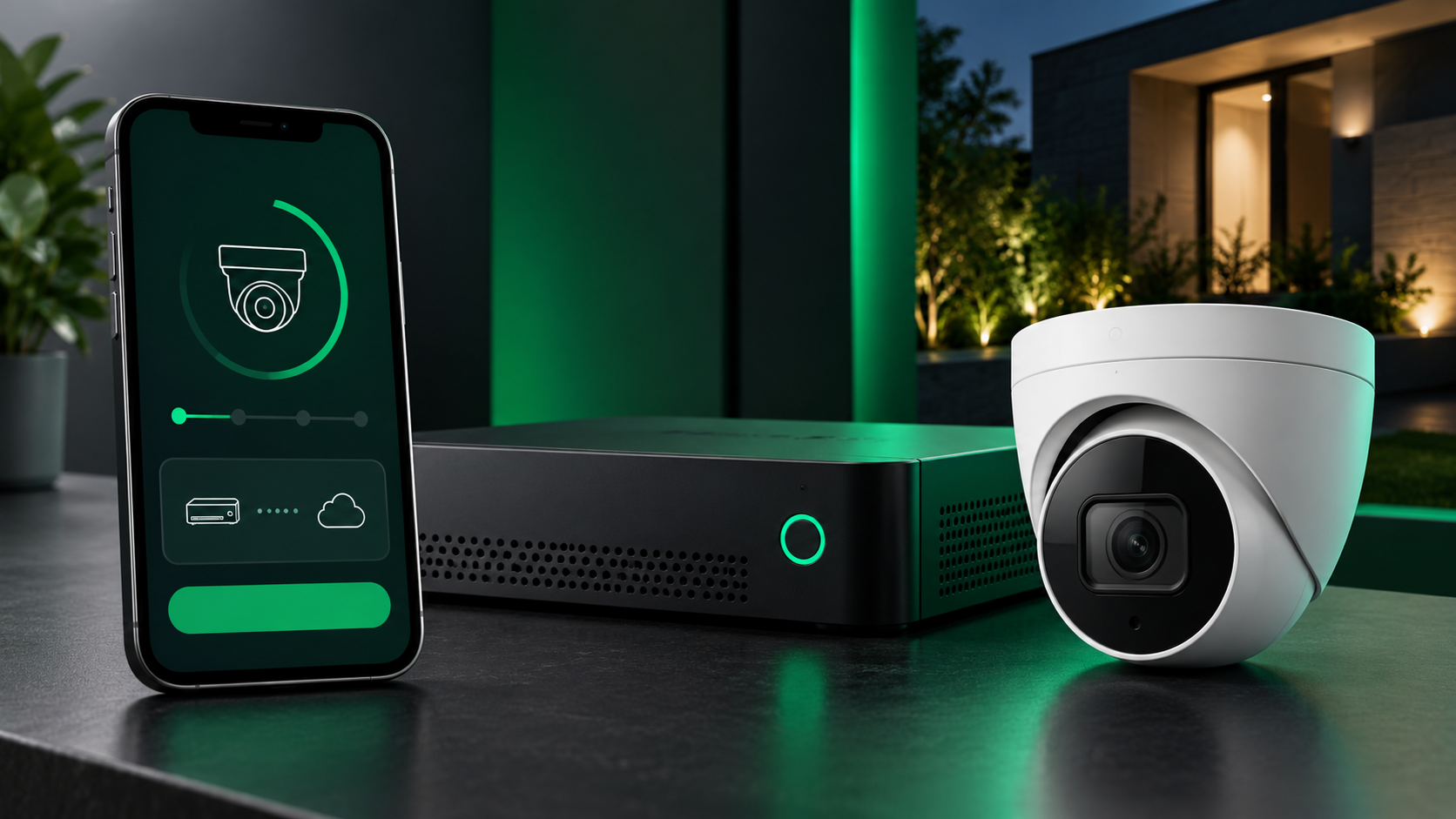
Shield’s original QR guide introduced a simpler way to add compatible recorders to a remote-viewing client. A QR code supplies connection information; it does not replace a working network, supported service or authorized login. [1]
Confirm the app and device
Identify the recorder model and use the app recommended for it. Locate the enrollment code in the recorder’s own interface and follow its documented procedure. Keep device identifiers and enrollment screenshots private.
Test locally, then remotely
Confirm the recorder is connected to its intended network. Add the device, save the entry and test live view and playback. Then test from another authorized connection to distinguish local access from remote access.
If enrollment fails
Check the device’s network status and the exact app version before repeating setup. The original guide described P2P convenience for compatible equipment; it was not a guarantee that every device works on every network. Contact support before changing router exposure or firewall settings.
Sources and resources
[1] Shield Technology — Easy QR Scan (2016-11-23). Historical article; revised for clarity and to distinguish legacy information from current guidance.